All contacts are automatically added to the New Prospect stage of the Sales Pipeline when they enter the Sales & Marketing system.

As you move contacts from stage to stage (manually or due to a tag being added) new tasks are assigned and emails may be automatically sent (depending on the stage). Tasks from the stage they were just removed from are automatically removed as new tasks are added.

There are eight stages that prospects move through in the Sales Pipeline. Once they complete their first CoolSculpting treatment they become customers, not prospects, and would be marked as “Deal Won” and would no longer be in the Sales Pipeline.

Below is a list of actions you will take while working in the Sales Pipeline and a description of what each stage is and what happens in those stages behind the scenes.
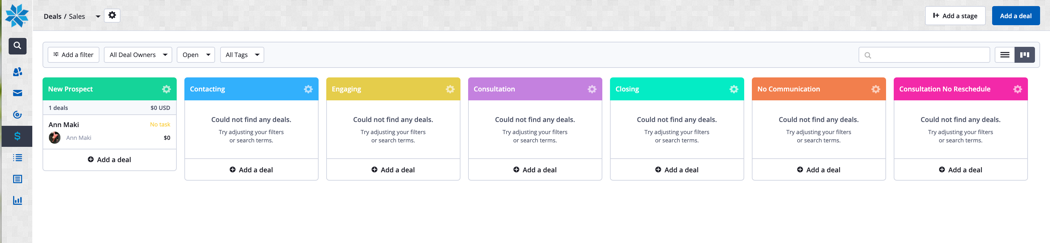
Actions You Will Take

  • Move contacts through the Sales Pipeline and mark tasks complete as they're done.  As you complete steps and customers progress, move them through the pipeline based on what step they are in (mentioned above). 
  • Tag as Consultation No Show.  If the client schedules a consultation, but does not show up, tag them as “Consultation No Show” in their contact record. This will run a sequence of emails and assign tasks.
  • Tag as Consultation Rescheduled (input new date in contact record).  Once you make contact with the client and they reschedule their missed or cancelled consultation, input the new date in their contact record and tag them as “Consultation Rescheduled”.
  • Tag as Consultation No Reschedule.  If the client cancels a consultation and does not want to reschedule at all or no shows a consultation and will not make contact to reschedule, tag them as “Consultation No Reschedule” in their contact record. This will move them to the Consultation No Reschedule stage and remove tasks.
  • Input consultation date and time when scheduled.  Once a client schedules a consultation, enter the date and time in their contact record prior to moving them to the Consultation stage of the sales pipeline.
  • Input consultation follow up date if agreed upon in consultation.  Ask the client when you should follow up if they don’t make a decision during the consultation. Input that follow up date in the contact’s record.
  • Mark deal as won.  Once the client has completed their first CoolSculpting treatment, drag them to Mark As Won.
  • Add notes to client profile as need be.  Use the client’s contact record notes section to record notes as you have conversations with the client via phone, text or email so you or anyone else can remember and know what was discussed.

The Stages

New Prospect
  • Contacts are automatically added to this stage when they enter the Sales and Marketing Dashboard.
  • New deal is created.
  • Contact is subscribed to the list Master List.
  • Contact is subscribed to the list Prospects.
  • Cool Prospect tag is added.
Contacting
  • Move prospect here once you are ready to begin communication with them.
  • Call, Email and Text tasks are added.
Engaging
  • Move prospect here when you have actually made contact – talked to them on the phone or received a response via text or email, but they have not yet scheduled a consultation.
  • Contacts are automatically moved here when they are tagged with “Consultation No Show”.
  • Cool Prospect tag is removed.
  • Hot Prospect tag is added.
  • Tasks from Contacting stage are marked as complete.
  • Engaging tasks are added.
  • After 90 days of no changes (no communication), the contact is automatically moved to the No Communication stage.
  • Contacts tagged as Consult No Show are automatically moved here and the following actions occur:
  • No Show email is automatically sent.
  • Call tasks are added.
Consultation
  • Move prospect here once they have scheduled a consultation.
  • Make sure to input their consultation date and time in their contact record prior to moving them to this stage.
  • Scheduled Consult tag is added.
  • Tasks from Engaging stage are marked as complete.
  • Consultation tasks are added.
  • Consultation confirmation email is automatically sent.
  • If the consultation was booked more than a day in advance, a reminder consultation email is sent again the day before their consultation.
Closing
  • Move prospect here once they have completed their consultation.
  • Tasks from Consultation stage are marked as complete.
  • Closing tasks are added.
  • Completed Consultation tag is added.
Deal Won
  • Mark the deal as won once the prospect has completed their first CoolSculpting treatment.
  • Contact is unsubscribed from the list Prospects.
  • Contact is subscribed to the list Valued Customers.
  • Hot Prospect tag is removed.
  • Cool Prospect tag is removed.
  • Contact is removed from the Welcome Sequence (will no longer receive those auto prospect emails).
No Communication
  • Move the prospect here if you cannot get them to respond to any emails/texts/calls when all avenues have been exhausted and tasks complete.
  • Hot Prospect tag is removed.
  • Cool Prospect tag is added.
  • Unengaged tag is added.
Consultation No Reschedule
  • Move the prospect here if they no showed their consultation appointment and don’t want to reschedule or if they rescheduled their consultation but now don’t want to move forward.
  • Previous tasks from stages are marked as complete.
  • After 90 days of no changes (no communication), the contact is automatically moved to the No Communication stage.